](https://deep-paper.org/en/paper/file-2399/images/cover.png)
Imagine a digital assistant that doesn’t just chat with you but actually uses your computer. You tell it, “Open the settings and change my default browser to Edge,” and it navigates the menus, finds the right buttons, and clicks them—just like a human would.
This is the promise of Graphical User Interface (GUI) automation. While we have seen rapid progress in AI agents that can browse the web or navigate mobile apps, the desktop environment—specifically Windows—remains a massive, largely unconquered frontier.
Why? Because unlike the structured code of a website, the Windows desktop is a visual “Wild West” of different frameworks, legacy applications, and overlapping windows.
In a recent paper titled “WinSpot: GUI Grounding Benchmark with Multimodal Large Language Models,” researchers from Microsoft and academic partners tackle this challenge head-on. They introduce a novel framework for generating training data and a comprehensive benchmark designed to teach Multimodal Large Language Models (MLLMs) how to “see” and “click” in the Windows OS.
In this deep dive, we will explore why Windows is such a hard problem for AI, how the researchers built a massive dataset from scratch using other AI models, and which current models are leading the pack in desktop automation.
The Problem: Why Windows is Hard for AI
To understand the significance of WinSpot, we first need to understand GUI Grounding.
GUI Grounding is the process of translating a natural language instruction (e.g., “Click the Search button”) into a specific coordinate on the screen (e.g., pixels x: 200, y: 50).
For web agents, this is relatively “easy.” Websites are built on HTML and the Document Object Model (DOM). An AI can look at the code, find a button labeled <button aria-label="Search">, and interact with it.
Windows is different.
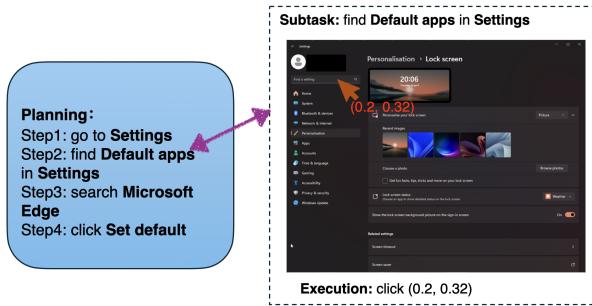
As shown in Figure 1, a Windows task involves high-level planning (breaking a goal into steps) and low-level execution (finding the specific pixel coordinates). The challenge is that Windows applications don’t have a standardized “code” like HTML that an AI can easily read.
- No Standard Structure: An app might be built using Win32 (legacy), UWP (modern), or Electron (web-based wrapper). They all look different and behave differently under the hood.
- Visual Only: Often, the only information the AI gets is a screenshot—a grid of pixels. There is no “accessibility tree” (metadata describing the buttons) for many legacy apps.
- Complexity: Windows allows overlapping screens, pop-ups, and dense information displays that mobile apps generally avoid.
Existing datasets focus heavily on the Web and Android. Without a dedicated dataset for Windows, researchers have been flying blind, unable to train or evaluate agents effectively on the operating system used by billions of enterprise workers.
The Traditional vs. The Visual Approach
The researchers highlight a fundamental shift in how we must approach desktop automation.
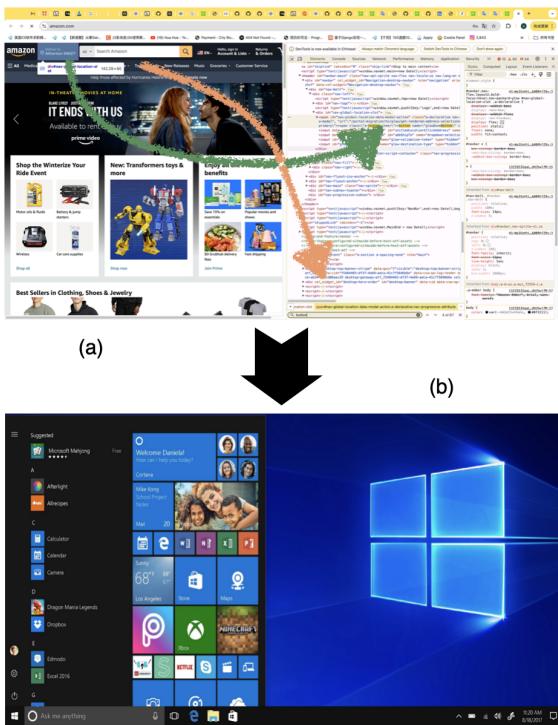
Figure 2 illustrates this shift clearly:
- (a) Traditional Data Construction: In web tasks, researchers parse HTML/DOM files to find icons and buttons. It’s structured and precise.
- (b) The WinSpot Approach: Because Windows lacks that reliable structure, the new framework relies only on raw screenshot images. It treats the computer screen purely as a visual field, requiring the AI to recognize a “Save” icon by its shape and context, not by reading a code tag.
The Core Method: Building a Dataset with AI
How do you build a massive dataset of “Instruction-Coordinate” pairs for Windows without spending years manually clicking on screenshots? The authors devised a clever Two-Stage Labeling Framework that uses existing AI models to generate data for new AI models.
This “Instruction-Interactable Region Alignment” pipeline is the engine behind their work. Let’s break down the process visualized in Figure 3.
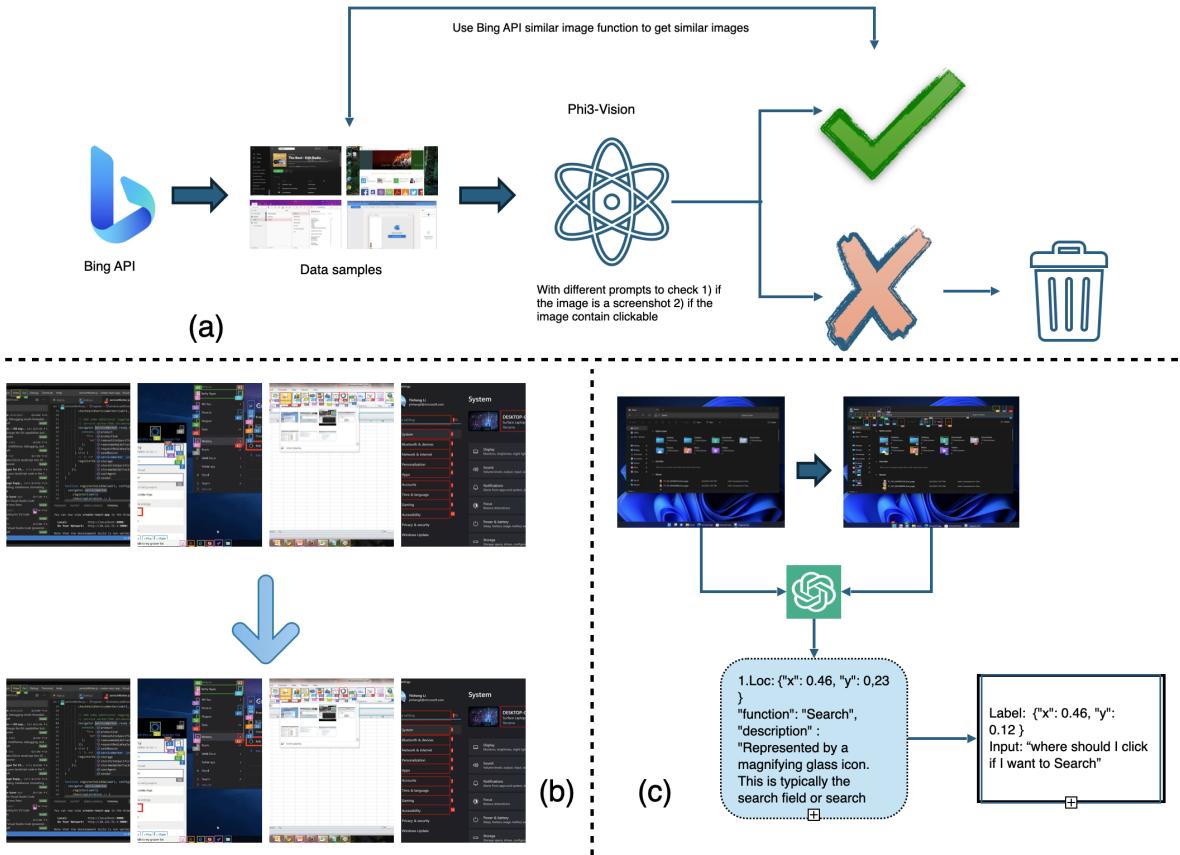
Step 1: Collection and Filtering (The Gatekeeper)
The process begins by gathering raw images. The researchers utilized the Bing API to scrape screenshots and combined them with open-source datasets (like CoVA and WebSight).
However, scraping the internet yields a lot of garbage. To ensure high quality, they employed Phi-3 Vision, a capable multimodal model, as a filter (seen in Figure 3a). They prompted Phi-3 to ask: “Is this a valid Windows screenshot? Is it high resolution?” Only images that passed this quality check moved forward.
Step 2: Icon Grounding (The Locator)
Once they had clean screenshots, the next step was finding the buttons. Since they couldn’t rely on code, they used a specialized in-house ViT-BERT model (Vision Transformer + BERT).
As shown in Figure 3b, this model scans the screenshot and draws bounding boxes around actionable elements—icons, text fields, and buttons. It identifies where things are, even if it doesn’t quite know what they do yet.
Step 3: Alignment with LLMs (The Describer)
Now we have a screenshot and a box around a button. But we need an instruction. This is where GPT-4o comes in.
The researchers fed the screenshots and the detected bounding boxes into GPT-4o (Figure 3c). The model was tasked with two jobs:
- Describe the element: “This is a magnifying glass icon.”
- Generate an instruction: “I want to search for a file, where should I click?”
This creates a complete training sample: An image, a user question, and the correct coordinate answer.
By automating this pipeline, the team generated over 60,000 training samples, drastically reducing the cost of manual labeling while covering a massive variety of Windows visual styles.
Introducing WinSpot: The Benchmark
While the generated data is great for training, a benchmark for testing needs to be perfect. You can’t evaluate a student using an answer key that might be wrong.
To create the WinSpot Benchmark, the authors selected a subset of their data and subjected it to rigorous human validation. The result is over 5,000 coordinate-instruction pairs spanning 14 core Windows applications.
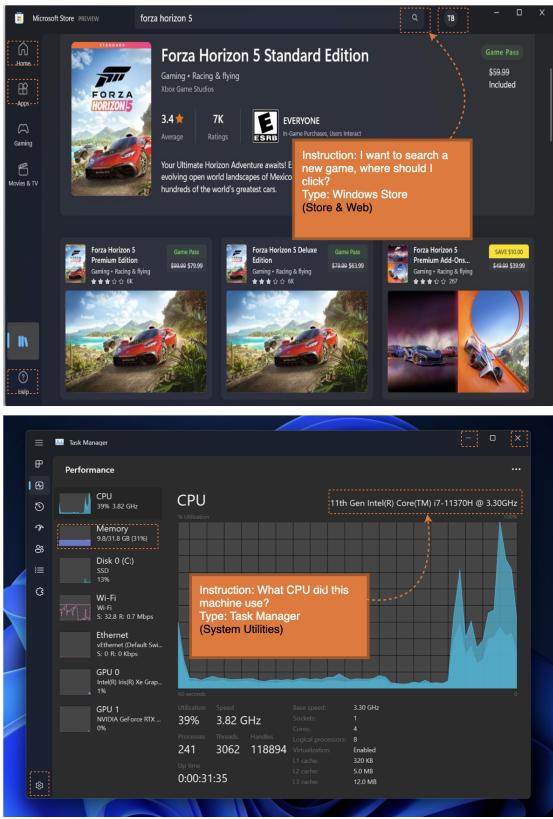
Figure 4 showcases the diversity of the benchmark.
- Top: A “Windows Store” task where the user wants to search for a game.
- Bottom: A “Task Manager” task asking for CPU details.
This variety is crucial. An agent that can browse the web might fail completely when looking at a system utility like Task Manager or a dense spreadsheet in Excel.
Diversity of Applications
To ensure the benchmark reflects real-world usage, the researchers balanced the dataset across different categories.
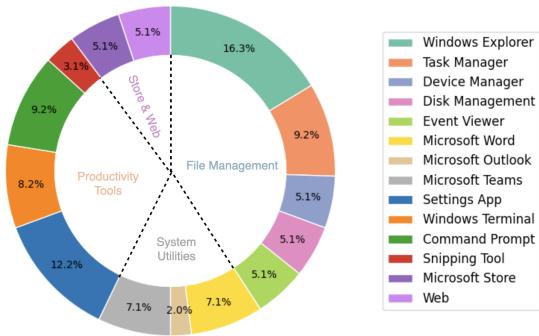
As Figure 5 displays, the dataset covers:
- File Management (16.3%): Windows Explorer interactions.
- System Settings (12.2%): The complex, often nested menus of the OS.
- Productivity Tools: Task Manager, Command Prompt, etc.
- Web & Store: More familiar, structured interfaces.
This distribution tests an agent’s ability to generalize. Can it handle the standardized layout of the Microsoft Store and the unique, text-heavy layout of the Command Prompt?
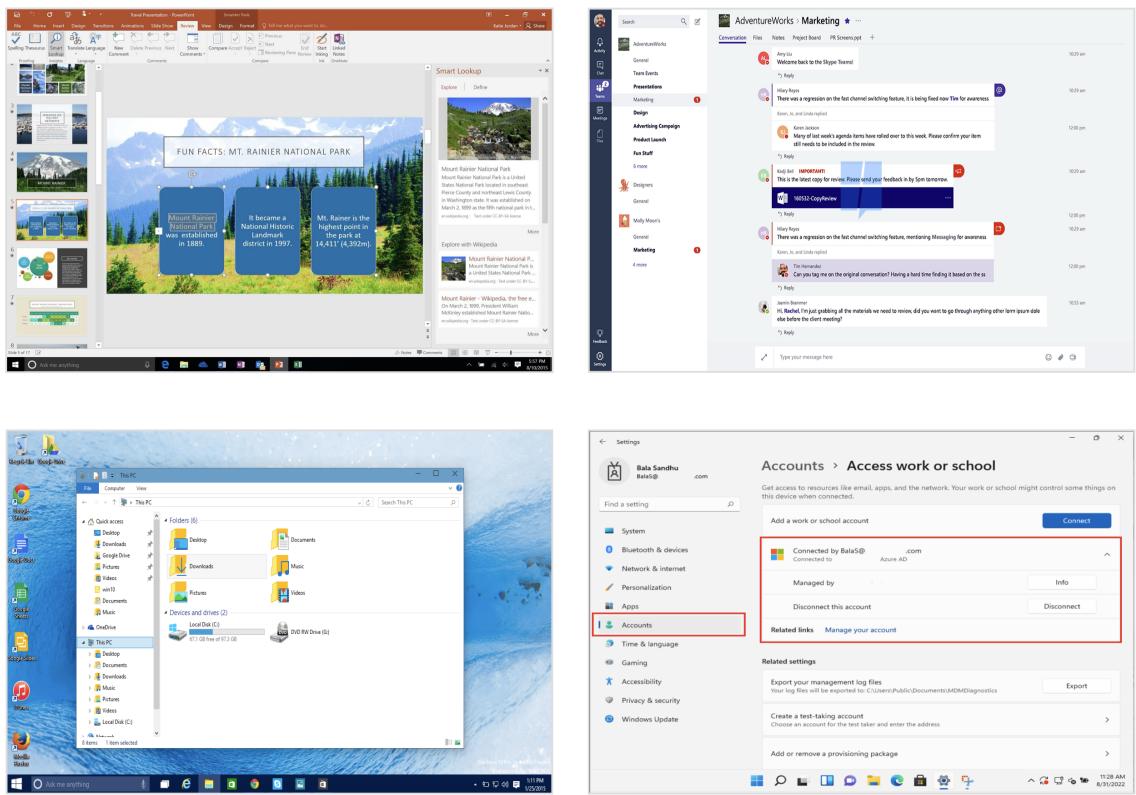
Figure 6 provides further examples of the training data, illustrating the granularity of the annotations. Whether it is a “Smart Lookup” pane in PowerPoint or a file directory in Explorer, the model must understand context to succeed.
Experiments: Who Rules the Desktop?
The researchers pitted several models against the WinSpot benchmark. They tested General-Purpose MLLMs (like GPT-4o and GPT-4V) against GUI-Specific Models (like SeeClick and Uground).
The metric used was Click Accuracy: Did the model predict a coordinate that falls inside the correct bounding box?
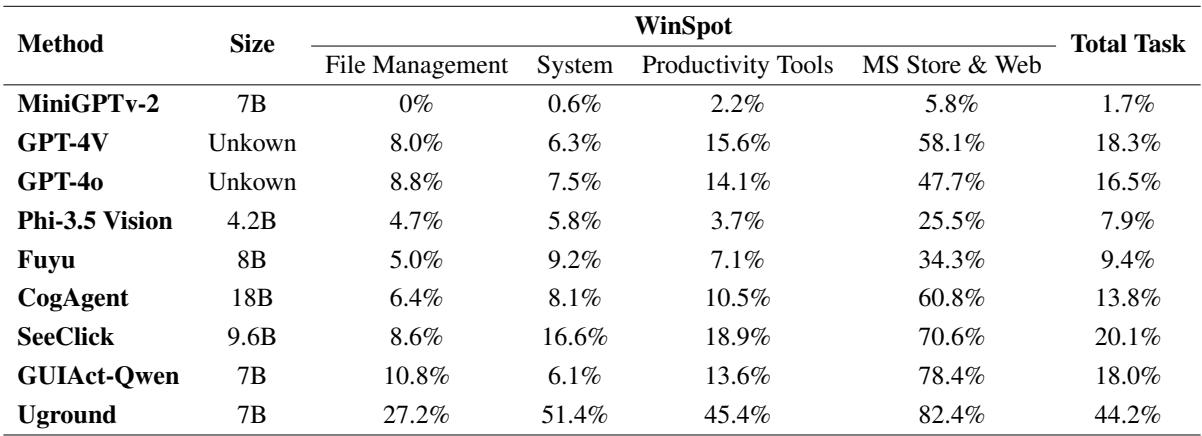
The results, detailed in Table 1, reveal some fascinating trends.
1. Generalists Struggle with the System
Look at the performance of GPT-4V and GPT-4o. While they perform decently on “MS Store & Web” (58.1% and 47.7% respectively), their performance collapses on “System” tasks (6.3% and 7.5%).
- Why? These models are trained heavily on web data. They understand what a website navigation bar looks like. They have likely seen far fewer screenshots of the Windows Control Panel or deeply nested File Explorer windows during their pre-training.
2. Specialists Take the Lead
The standout performer is Uground, a specialized GUI agent. It achieves a 44.2% total accuracy, more than double that of GPT-4V.
- Uground dominates in System tasks (51.4%) and File Management (27.2%). This proves that fine-tuning on domain-specific GUI data is essential. You cannot just rely on a general “world model” to navigate a specific operating system.
3. The “System” Gap
Across the board, every model performed worse on File Management and System settings than on Web/Store tasks.
- Web/Store: High structure, familiar icons, standard layouts.
- System/File: Dense text, non-standard lists, lack of clear visual affordances. This indicates that the “desktop” part of desktop automation is still the hardest nut to crack.
Conclusion and Future Implications
The WinSpot paper makes a compelling case: if we want AI agents to help us work, we need to teach them the visual language of our operating systems. By moving away from code-based dependencies (HTML/DOM) and embracing a purely visual approach, the researchers have opened the door for agents that can work across any application, regardless of how it was coded.
However, the results show we are still in the early stages. Even the best model (Uground) fails more than half the time on average. The “System Gap” highlights that our current AI models still lack the fine-grained spatial reasoning required to navigate complex OS hierarchies.
The authors suggest that the future lies in temporal dynamics—teaching agents not just to look at a screenshot, but to understand a sequence of actions over time. Navigating a menu isn’t just one click; it’s a flow of states.
WinSpot provides the map for this territory. It serves as a rigorous testbed that will likely drive the next generation of “Computer-Using Agents,” moving us closer to a future where your computer creates a spreadsheet or organizes your files simply because you asked it to.